

After trying OpenClaw, I have found Hermes Agent a useful alternative for automated tasks. It supports parallel subagents and scheduled jobs, and in my own workflow it has felt easier to use. This guide follows my Docker setup and connects the agent to Telegram, with a persistent directory so updates do not erase its configuration.
The commands below assume a Linux host or a Linux shell such as WSL2. Install Docker first using the official Docker Engine instructions; Docker Desktop users should follow the instructions for their operating system. Confirm that docker version can reach the daemon before continuing.
1. Create the data directory and run setup
mkdir -p ~/.hermes

docker run -it --rm \
  -e HERMES_UID="$(id -u)" \
  -e HERMES_GID="$(id -g)" \
  -v "$HOME/.hermes:/opt/data" \
  nousresearch/hermes-agent setup
The bind mount keeps configuration, credentials, sessions, and memories in your host's ~/.hermes directory. The temporary setup container can exit without removing that directory. The UID and GID settings align the container runtime with the Linux account that owns it. If you use sudo for Docker, use sudo docker while keeping the same user-owned data path.
2. Choose a provider, model, and terminal backend
Choose the full setup option. Use the arrow keys to move through menus and Space or Enter to select items. Choose your model provider, or select Custom endpoint for a compatible service and enter its base URL and API key. Pick a default model for new conversations; you can change models later.
For this container deployment, a local terminal backend executes commands inside the Hermes container. It does not automatically provide a shell on the host. A separate Docker terminal backend is a different arrangement and may require access to a Docker daemon; it is not necessary for this walkthrough. The official Docker guide explains the distinction.
3. Create and connect the Telegram bot
- Open Telegram's @BotFather and send
/newbot. - Choose a display name and a unique username ending in
bot, such asmy_hermes_helper_bot. - Copy the bot token returned by BotFather.
- In Hermes' platform selection, highlight Telegram, select it with Space, and confirm with Enter. Choose the option to enter a token, then paste the token. Menu numbers may change between releases.
Before starting the gateway, restrict who can use the bot. In ~/.hermes/.env, set TELEGRAM_ALLOWED_USERS to your own numeric Telegram user ID, or use Hermes' DM pairing flow. This matters because an authorized conversation can trigger tools and terminal commands. See the Hermes authorization guide.
TELEGRAM_ALLOWED_USERS=YOUR_NUMERIC_TELEGRAM_USER_IDReplace the placeholder with the actual numeric ID. Keep the BotFather token and provider keys in the private configuration rather than publishing them in screenshots.
4. Select optional tools
Select the CLI tools you need. The original screenshot shows my choices; services with paid APIs may need their own credentials. Begin with the tools you intend to use and add others when a task requires them.
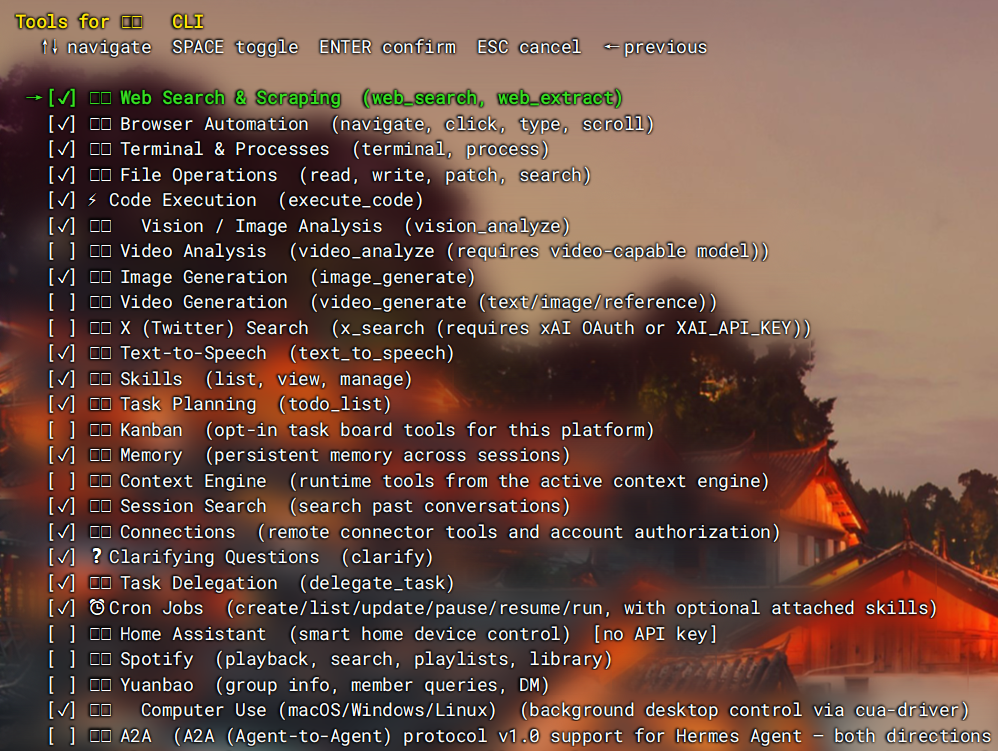
For browser access, choose an available local or hosted browser option and complete any required provider setup. Image generation can be configured with a supported provider or skipped. For search, the original setup uses DuckDuckGo through ddgs; another search service such as Tavily is an alternative if you configure its credentials and account limits.
For spoken replies, Microsoft Edge TTS is a no-key text-to-speech option. It reads text aloud; it does not transcribe an incoming voice message. Voice input needs a separate speech-to-text provider, as explained in the official voice guide.
5. Start the gateway in the background
docker run -d \
  --name hermes \
  --restart unless-stopped \
  -e HERMES_UID="$(id -u)" \
  -e HERMES_GID="$(id -g)" \
  -v "$HOME/.hermes:/opt/data" \
  nousresearch/hermes-agent gateway run
For Telegram alone, publishing a host port is unnecessary. The original command maps port 8642, which is useful for the gateway API when configured, but it is not required for Telegram messaging. This version leaves that mapping out.
docker ps --filter name=hermes
docker logs --tail 100 hermes
Check that the container is running, then open your bot in Telegram and send a short message from the allowed account. If it does not answer, look for provider, Telegram-token, or authorization errors in the logs. A container that is running is only the first check; a real reply confirms the connection.
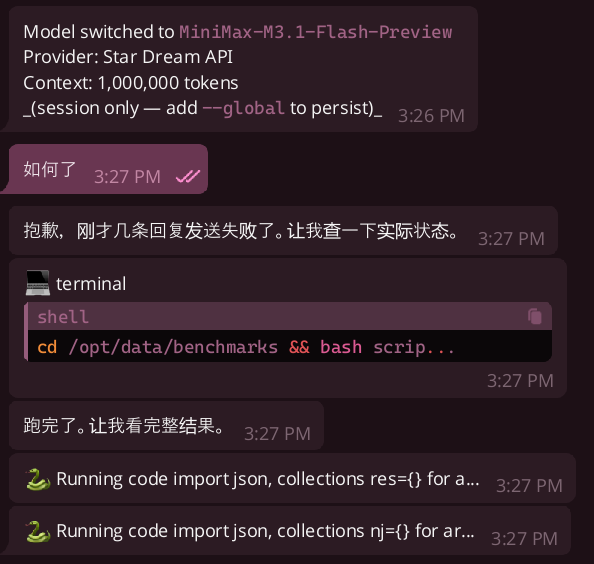
Keep a private backup of ~/.hermes, and use only one gateway container with this directory. On Docker Desktop, consult the official guide's filesystem notes if you already have a session database created on a bind mount. For an alternative workflow, see our OpenClaw installation and Telegram guide.
Adapted from the original Chinese article, published on October 6, 2026.
Comments NOTHING