
AstrBot connects AI models to messaging platforms. This beginner guide covers installation and a basic Telegram configuration. My original Linux example used Debian 12; Ubuntu uses similar package commands. A server with 2 CPU cores and 4 GB RAM was my suggested starting point, though actual needs depend on plugins and usage.
Start with the official repository and current deployment documentation. The original screenshots show an older version.

Linux: run from source
Install Git, clone the repository, and enter its directory. Use administrator privileges for the package-installation command if needed:
sudo apt install git
git clone https://github.com/AstrBotDevs/AstrBot.git
cd AstrBot
Install uv following its official instructions. The shell installer used in the original post is:
wget -qO- https://astral.sh/uv/install.sh | shCurrent source deployment requires Python 3.12 or later. From the project directory, install dependencies and start:
uv sync
uv run main.py
The WebUI normally uses port 6185. On the same machine, open http://localhost:6185. For remote access, use your server’s address and an appropriate protected connection. Current versions print an initial password in the startup log; the original astrbot/astrbot credentials applied to an older release. Change the password after login.
Alternative: Docker
The original post used Docker’s convenience installer:
sudo wget -qO- https://get.docker.com/ | bashReview the installer before running it. After installing Docker, confirm it is available:
docker --versionFrom the cloned AstrBot directory, start the supplied Compose configuration:
sudo docker compose up -dWindows
The original article linked AstrBot Desktop 4.23.0 beta 1. That is a historical build; use the repository’s releases page to choose an appropriate current installer.
Add a model provider
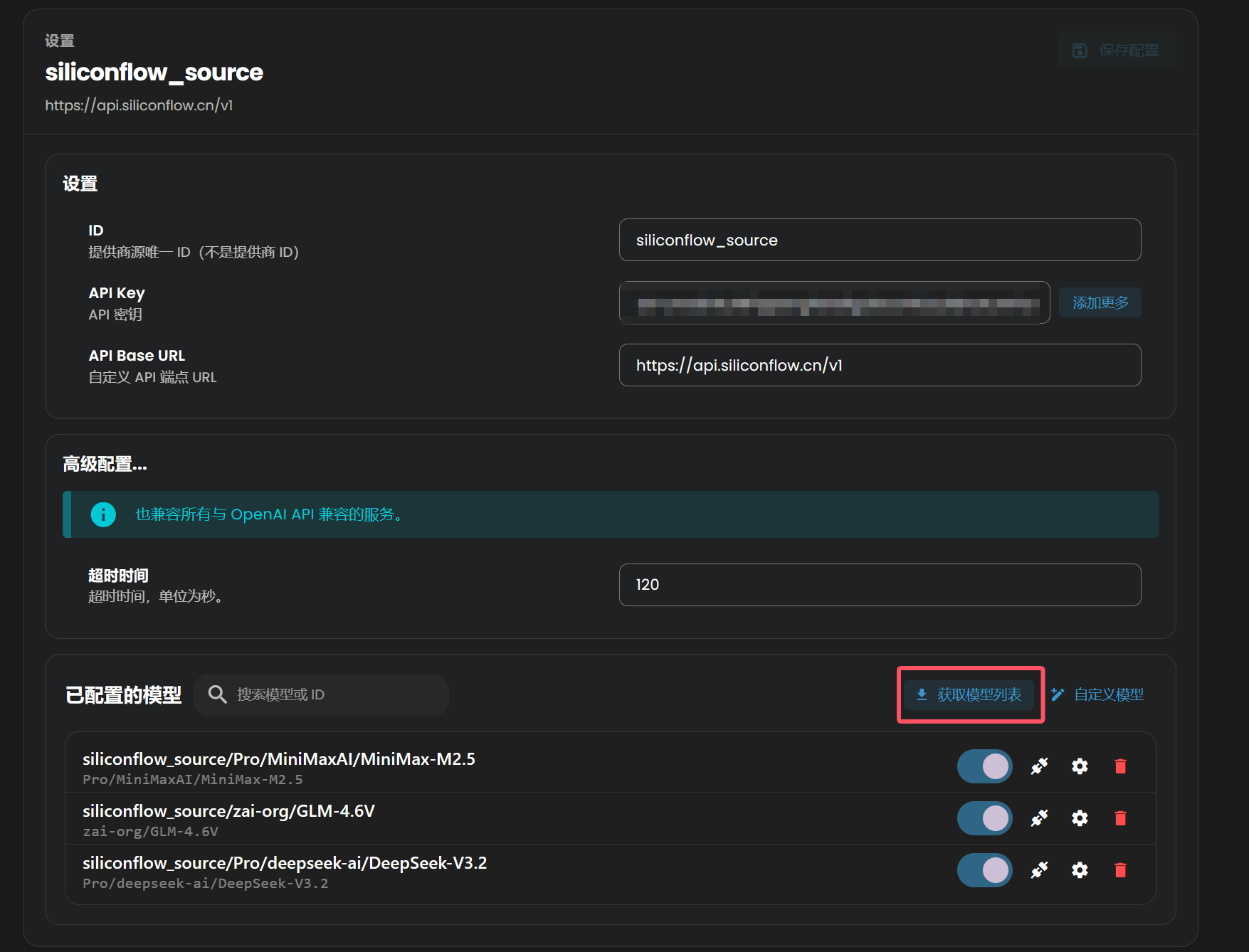
In the dashboard, find Model Providers, select the chat category, and add a provider. Enter its API address and key, retrieve the model list if supported, choose a model, and test the connection.
The original examples include NVIDIA’s developer API (Chinese original) and SiliconFlow (Chinese original). Availability, credits, eligibility, and pricing can change. Check both input and output rates before use.
Create a Telegram bot
Open @BotFather, send /newbot, and choose a display name and available username. Copy the bot token into AstrBot’s Telegram platform configuration. Keep it private.
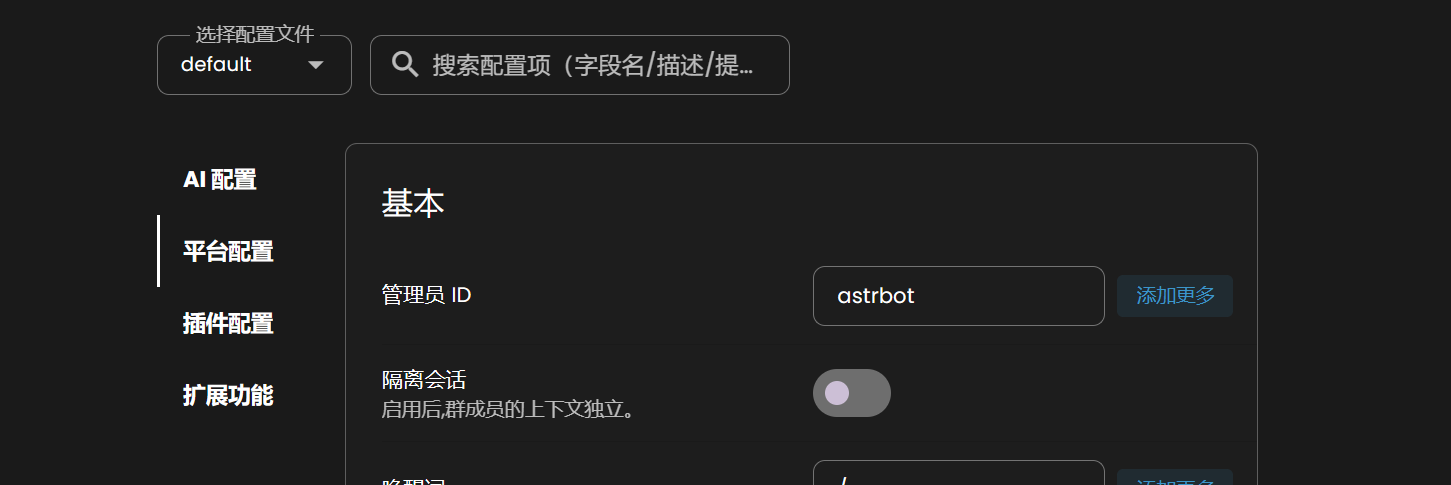
Create and select a configuration profile. Choose the chat model and a persona/system prompt. Telegram can support streaming output; enable it if the adapter provides that setting. Show model reasoning output only where the provider and adapter make it available.
Context, permissions, and group behavior
Longer history generally means more repeated input tokens. Choose a conversation-history limit that fits your budget; my original example used up to 100 turns. Summaries or retrieval may help longer projects.
Set the administrator ID to your own Telegram user ID. The original post suggested @userinfobot for finding it. Content settings should match your intended audience and the provider’s terms.
For group chats, context awareness and proactive replies can make the bot more lively but increase usage. Save the configuration and test a private message before enabling it in a busy group. This completes the basic setup; consult AstrBot’s documentation for plugins, MCP, and advanced settings.
Adapted from the original Chinese article, published on April 12, 2026.
Comments NOTHING