

Docker Desktop on Windows may stop at “Virtualization support not detected.” The usual things to check are hardware virtualization in your BIOS or UEFI, the Windows virtualization features, and the WSL installation.
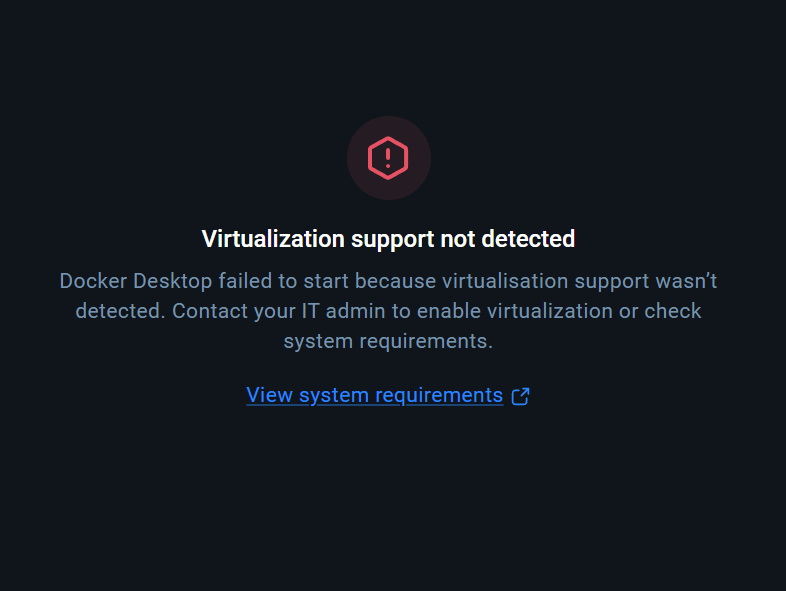
1. Check Task Manager
Press Ctrl + Shift + Esc, open Performance → CPU, and find the Virtualization status. If it says Enabled, move on to the Windows-feature checks.
2. Enable virtualization in BIOS or UEFI
If virtualization is disabled, restart the computer and enter its BIOS or UEFI setup. Many PCs use Delete or F2 during startup, although the correct key depends on the manufacturer.
Look under a section such as Advanced → CPU Configuration. On Intel systems, enable Intel Virtualization Technology; on AMD systems, look for SVM Mode. Save the change and restart.
3. Check the Windows features and WSL
Press Win + R, type optionalfeatures, and press Enter. For a WSL-based setup, enable Windows Subsystem for Linux and Virtual Machine Platform, then restart when prompted.
Open an administrator terminal and install WSL if needed:
wsl --installFor an existing WSL installation, update it and check its version:
wsl --update
wsl --version
Docker's current Windows instructions require WSL 2.1.5 or later for its WSL 2 backend. Restart after any required setup changes, then open Docker Desktop again.
If the error remains, check Docker's requirements for your Windows version and whether you are running inside a virtual machine that needs nested virtualization.
Reference: Docker's Windows installation guide.
Adapted from the original Chinese article, published on September 18, 2026.
Comments NOTHING